0 / 20000
AI Image Generator
This AI image generator brings together multiple models to create photos, illustrations and scenes from text or a reference image. Choose text to image to start from scratch or image to image to transform a photo. Adjust style, color, lighting and composition, and compare different versions of your idea.
Two ways to create AI images
Your starting point determines what the AI image generator needs from you.
Describe the image you don't have yet
Use text to image to invent a scene. Tell the AI image generator what appears, where it happens and how it should look.
Take your reference in a new direction
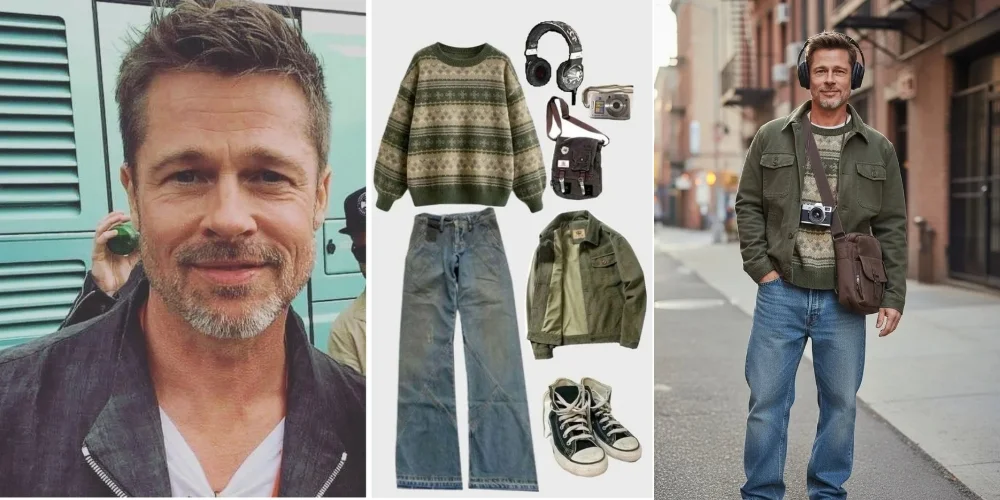
Upload an image and describe a change to its setting, style, clothing or composition. The reference guides the AI image generator toward the subject, framing or visual style you want to explore.
Choose the framing first
Pick a portrait, landscape or square format for your project. Leave room for anything you will add later, such as a headline or call to action.
Explore versions before choosing
Ask the AI image generator for several versions and compare their compositions. Keep the central idea and change one instruction at a time.
Decisions that shape the result
First thought
More adjectives mean a better image.
A better approach
Give the AI image generator a specific scene: subject, action, setting and light. Conflicting instructions make the brief harder to interpret.
First thought
Using a reference without explaining what you want to change.
A better approach
Explain what the reference contributes and describe the new scene. For example, use an armchair as your starting point and place it in a different setting.
First thought
A PNG file always has a transparent background.
A better approach
Use the transparent image generator when you need an element without a background. PNG can preserve that transparency so you can place the asset in your design.
Choose a workflow for the image you need
An AI image generator creates and reinterprets images. Background removal and transparent elements have their own workflows.
| Goal | Starting point | What to describe | Intended result | Your control | What to check |
|---|---|---|---|---|---|
| Invent a scene | Text | Subject and setting | Complete image | Format and model | Composition |
| Transform a photo | Image and text | What to keep or change | New interpretation | Reference image | Original details |
| Explore a style | Text or image | Technique and appearance | Different visual style | Visual description | Consistency |
| Compare concepts | One central idea | Change one decision | Alternative versions | Image count | Useful differences |
| Create an isolated element | Text or reference | The element you need | New image without a background | Transparent generator | Silhouette |
| Keep an existing subject | Existing photo | No description needed | Cutout of the original | Background tool | Edges |
A quick way to choose
I have an idea but no photo.
Start with text to image and describe the scene.
I want to change an image's setting.
Add a reference and explain the new surroundings.
I need room for text in the composition.
Tell the AI image generator where to leave that space.
I only need to separate a subject from its background.
Use the background tool to work with your original photo.
Give your AI image generator a clear direction
These decisions give the AI image generator more useful instructions than a list of disconnected words.
Subject and action
The focus of the image
Tell the AI image generator who or what appears and what they are doing. Start with the main subject.
Try: A cyclist crossing a bridge at sunrise.
Avoid: Several competing subjects without a clear focus.
Setting and composition
Relationships within the frame
Position the elements and choose a viewpoint. The AI image generator needs to know how they relate.
Try: Subject on the right, open space on the left.
Avoid: Requesting a close-up and a panoramic scene together.
Light and color
A defined atmosphere
Describe the light's direction and a coherent palette. Express the mood through visible details.
Try: Soft side lighting and warm colors.
Avoid: Combining night lighting and midday sun without context.
Visual style
Photo, illustration or concept
Ask the AI image generator for photography, watercolor, editorial illustration or a render to suit your purpose.
Try: Simple line illustration with flat colors.
Avoid: Stacking incompatible styles in one request.
Generation model
Different interpretations
Choose a model in the AI image generator that supports your input, the references you need and your output resolution.
Try: Comparing the same brief with the same references and aspect ratio.
Avoid: Changing the model, prompt and references at the same time when comparing results.
Aspect ratio and resolution
Settings for your final destination
Aspect ratio defines the frame's shape; resolution defines its dimensions. Available options depend on the model.
Try: Choosing the format before generating.
Avoid: Choosing an aspect ratio without considering where the image will appear.
How to choose an image for your project
Compare versions from the AI image generator by their subject, composition and intended use.
Focus and space
Check how the AI image generator has arranged the elements and whether there is room for your text.
Shapes and objects
Consider the subject’s shape, materials and surrounding objects. You can ask the AI image generator for a composition that draws attention to the details you care about most.
Letters and numbers
Choose where to place headings and numbers within the composition. Adding typography in your editor lets you adjust the font, size and alignment.
Reference features
Identify the colors, materials and shapes that define your reference. Compare how the AI image generator incorporates them into each version.
Clarity at the final size
View the image at its intended display size. Choose a version with a subject and composition that read clearly in that format.
Choose the version that fits your project, then inspect its details at the size you plan to use.
From an AI image generator to your project
Turn the purpose of your image into a specific visual brief.
Article header images
For: Blogs, newsletters and cover images.
Goal: Represent an idea without relying on a literal photograph.
What to describe: Tell the AI image generator the concept, visual metaphor and headline position.
What to check: Make sure the image makes sense without reading the article.
Campaign concepts
For: Visual proposals before the final design.
Goal: Compare settings, colors and framing for one idea.
What to describe: Describe the audience, scene and intended mood to the AI image generator.
What to check: Consider how the product, colors and space for your message work together in the concept.
Scenes for a story
For: Storyboards and concept presentations.
Goal: Show an action, a location and a point of view.
What to describe: Reuse the character description and a reference when you need continuity.
What to check: Compare clothing, proportions and surroundings between scenes.
Rooms and environments
For: Exploring decor and scene ideas.
Goal: Visualize a combination of materials, lighting and layout.
What to describe: Tell the AI image generator the space, perspective and main elements.
What to check: Explore how the furniture, lighting and materials work together as a starting point for your concept.
Four ways to develop your idea
Give the AI image generator a clear direction with these composition, style and reference adjustments.
Give the scene a clear main subject.
How to do it: Give the AI image generator one subject and one action. Add supporting details afterward.
Set a visual style for the series.
How to do it: Reuse the same visual description, palette and reference. Adjust one instruction at a time to compare its effect across the set.
Leave room for your headline.
How to do it: Tell the AI image generator where to place the subject and which area should remain open.
Highlight your reference’s defining features.
How to do it: Name the colors, materials and shapes that define the subject. Specify which ones you want to emphasize in the new image’s framing.
How to write a prompt for an AI image generator
A clear description combines content, composition and style into a scene you can picture.
A structure you can adapt
Subject and action + setting + framing + lighting + style + space for your design.
"A red bicycle outside a neighborhood cafe, side view, soft morning light and a photographic look. Landscape format with open space on the right for a headline."
How to transform a photo with specific instructions
Too vague
"Improve this photo of the armchair."
More specific
"Use the armchair in the reference: keep its green upholstery, curved back and wooden legs. Place it beside a window in a bright living room, with a beige wall and soft side lighting."
This brief tells the AI image generator what to keep about the armchair and what to change in its surroundings. Check the color, shape and legs in the result.
Refine one decision at a time
- 1Start with the subject, setting and format you need.
- 2Choose the closest result and use it as a reference if you want to develop that direction.
- 3Give the AI image generator one specific change and compare the new version with the previous one.
When you use references
- Tell the AI image generator what each reference contributes: subject, composition or atmosphere.
- State what should stay and what you want to change.
- Use a reference that clearly shows the features you want to include in your new composition.
How to use the AI image generator
Use the AI image generator above and follow the result of each image.
Choose your starting point
Select text to image or image to image, and add a reference if you need one.
Describe and configure
Write your idea, choose a model and set the format. Review the available options before generating.
Compare and choose
Compare versions from the AI image generator and choose the one that best fits your project.
AI image generator questions
Answers to common questions when you start using an AI image generator.
Choose the next step for your image
Continue with an original-photo cutout, a group of photos or a new transparent element.
Develop your idea with an AI image generator
Start with a description or a reference and create the composition your project needs.